


Contents
- 1. Fit Check: Is Your Office Ready for AR?
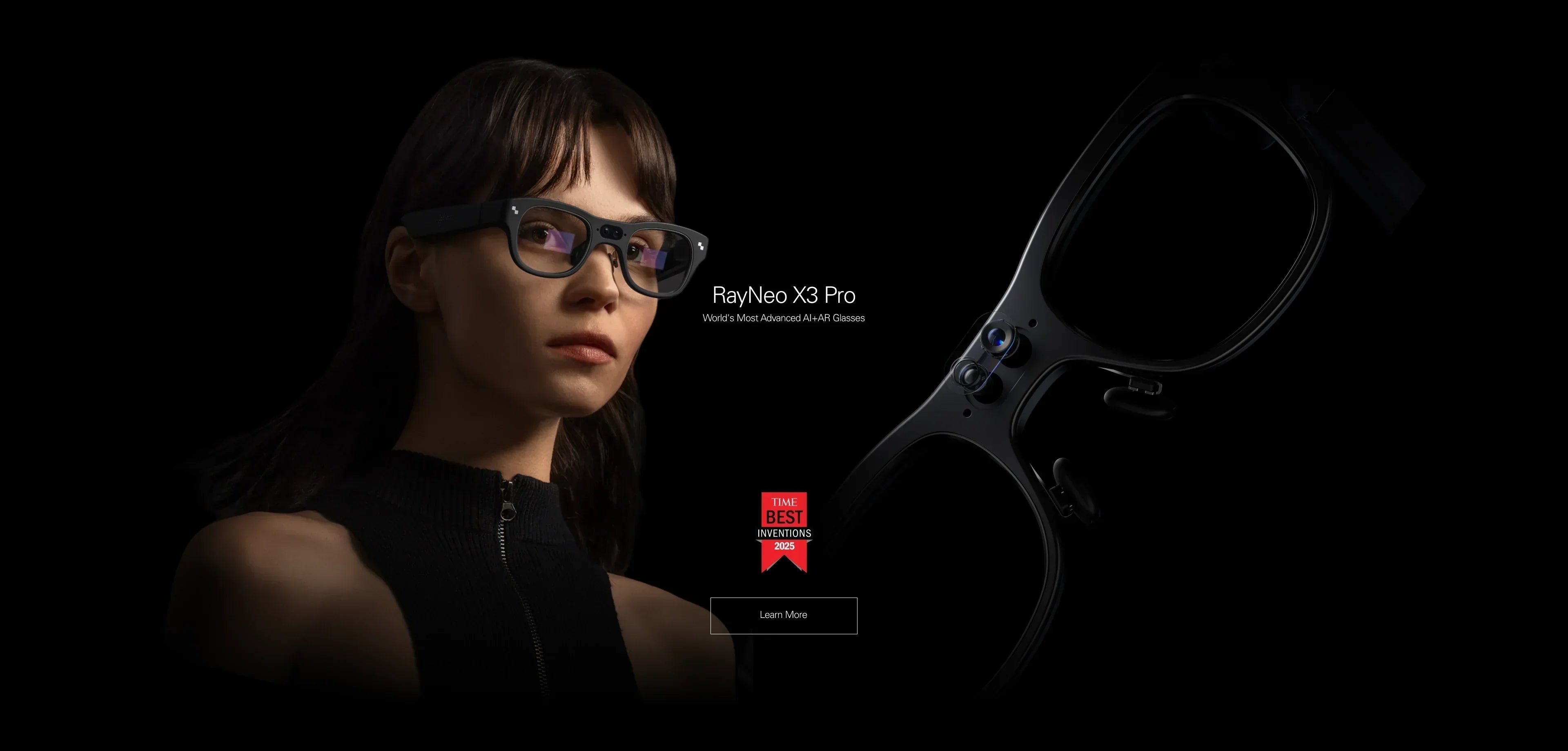
- 2. The "AI Assistant" Approach: RayNeo X3 Pro
- 3. The "Virtual Monitor" Approach: RayNeo Air Series
- 4. Setup Guide: Creating Your Virtual Office
- 5. Market Comparison: RayNeo vs. The Rest
- 6. Realistic Limitations: What You Need to Know
- 7. FAQ: Work Edition
- 8. Next Steps: Upgrade Your Workflow
The dream of the "Virtual Office" is finally practical. If you are asking, "Can you recommend AR glasses for work?", the answer in 2026 is a definitive yes, but it depends entirely on where you work.
Here is the quick decision framework:
-
For Business Travelers & Executives (The "Field" Worker): Choose the RayNeo X3 Pro. It uses AI to handle real-time translation, meeting summaries, and hands-free notifications. It keeps you connected without opening a laptop.
-
For Coders & Analysts (The "Desk" Worker): Choose the RayNeo Air Series (Air 2s / Air 4 Pro). These connect to your laptop to create a private, multi-monitor setup anywhere—perfect for coding on a plane or reviewing spreadsheets in a coffee shop.
This guide will help you check if your work laptop/phone is compatible, set up your virtual office, and understand the realistic limitations of replacing physical monitors with light.

1. Fit Check: Is Your Office Ready for AR?
Before you ditch your physical monitors, you need to ensure your work devices can actually drive these glasses. Corporate IT restrictions and hardware ports are the biggest hurdles.
Check Your Laptop (For Air Series)
To use the RayNeo Air series as a portable monitor extension:
-
USB-C with DisplayPort (DP): Your laptop MUST have a USB-C port that supports video output. Look for the "D" (DisplayPort) or "Lightning Bolt" (Thunderbolt) icon next to the port.
-
MacBooks: Any MacBook with Apple Silicon (M1/M2/M3/M4) works perfectly. You can mirror your screen instantly. To get multiple virtual screens, you will need to install our "RayNeo Mirror Studio" software.
-
Windows Laptops: Most modern Dell XPS, Lenovo ThinkPad X1, and HP Spectre models work plug-and-play. Warning: Some corporate laptops have strict security policies (DLP) that prevent installing external display drivers. Check with your IT department if you plan to use multi-screen software.
Check Your Phone (For Mobile Productivity)
-
Samsung DeX Users: ✔ Gold Standard. If you have a Galaxy S series (S21 or newer), connecting RayNeo Air glasses automatically launches Samsung DeX. This turns your phone into a full Windows-like desktop environment inside the glasses. You can pair a Bluetooth keyboard and work comfortably without a laptop.
-
iPhone 15/16 Users: ✔ Supported. Excellent for reviewing decks or emails on a large virtual screen via direct USB-C connection.

2. The "AI Assistant" Approach: RayNeo X3 Pro
Most people think "Work AR" means "Virtual Monitors." But for executives, sales directors, and consultants, work happens in meetings, not just on screens. This is where the RayNeo X3 Pro shines.
Best For: Cross-border communication, face-to-face meetings, and "hands-busy" professionals.
Scenario A: The International Business Trip
You are negotiating a deal in Shanghai or Berlin. You don't speak the language fluently.
-
The Old Way: Passing a phone back and forth with Google Translate app. Awkward and breaks eye contact.
-
The RayNeo X3 Pro Way: You wear the glasses. As your counterpart speaks, translated subtitles appear in real-time floating near their face. You understand instantly while maintaining eye contact and professional rapport. The X3 Pro supports 14 languages with high accuracy.
Scenario B: The AI Meeting Secretary
You are in a high-stakes board meeting. Taking notes distracts you from the conversation.
-
The Solution: The X3 Pro's built-in AI (powered by Gemini) can listen to the audio stream and generate key bullet-point summaries. You can also discreetly pull up your own talking points or data figures in your peripheral vision (HUD) without looking down at a notebook.
3. The "Virtual Monitor" Approach: RayNeo Air Series
For knowledge workers who need "pixels" above all else—coders, writers, financial analysts—the RayNeo Air Series (including the Air 2s and the upcoming Air 4 Pro) is the superior choice.
Best For: Deep focus work, privacy, and extending screen real estate.
Scenario C: The "Coffee Shop" Privacy Shield
You are working on confidential Q4 financial projections in a crowded Starbucks.
-
The Problem: "Visual Hacking." Anyone walking behind you can see your laptop screen.
-
The RayNeo Solution: You dim your physical laptop screen to black. You put on the RayNeo Air glasses. Now, ONLY YOU can see the massive 201-inch virtual monitor floating in front of you. It is the ultimate privacy filter.
Scenario D: The "Economy Class" Office
There is no room to open a laptop fully on a tray table, let alone set up a portable USB monitor.
-
The Solution: Lean back in your seat. Connect the glasses to your phone (using DeX) or your closed laptop (clamshell mode). You now have a dual-monitor setup that weighs practically nothing and takes up zero tray table space.
4. Setup Guide: Creating Your Virtual Office
How do you actually get work done? Here is the setup workflow.
Step 1: The Connection
-
For X3 Pro: Just put them on. Ensure they are paired to your phone via the RayNeo App for data connectivity.
-
For Air Series: Plug the USB-C cable into your laptop's Thunderbolt/DisplayPort. Windows/macOS will detect it immediately as "External Monitor."
Step 2: Software Support (Air Series)
With a single cable connection, the Air series provides either mirrored or extended display output, essentially projecting your laptop or mobile screen as a large virtual monitor. The Air devices themselves do not currently support native multi-screen output or spatially anchored windows.
For multi-task workflows, users can rely on software running on the connected computer:
-
Windows: Supported via RayNeo's PC utilities or third-party virtual desktop software, which allows multiple application windows to be arranged within a larger virtual desktop workspace.
-
macOS: macOS's native “Extend Desktop” mode offers a clear and stable single large screen output. At present, there is no official RayNeo software for macOS that enables a multi-window virtual workspace.
Overall, the Air series functions as an external virtual monitor rather than an AR spatial computing device. Any multi-tasking experience is driven by the host computer’s software rather than by the glasses themselves.
Step 3: Text Clarity Optimization
Reading code or Excel cells requires perfect sharpness.
-
Nose Pads: Change the nose pads until the corners of the screen are visible. If the Windows "Start" button is blurry, your glasses are sitting too high/low.
-
Scaling: In Windows Display Settings, set the external display (RayNeo) scale to 125% or 150%. Native 100% scale at 1080p might result in text that is too small for comfortable reading on a virtual screen.
5. Market Comparison: RayNeo vs. The Rest
How does RayNeo stack up against other "Productivity" headsets?
6. Realistic Limitations: What You Need to Know
We want to be honest about the transition to "Spatial Computing."
-
Text Clarity (PPD): The Air series has a high PPD (49+), meaning text is crisp. However, edges can be slightly softer than the center due to optics. Pro Tip: Keep your main working window in the center of your view.
-
Eye Strain: It is different from a normal monitor. Your eyes are focusing at a fixed virtual distance (usually ~4 meters). This is actually better for your eye muscles than staring at a phone 10 inches away, but you still need breaks. Follow the 20-20-20 rule.
-
Input Methods: AR glasses are output devices. You still need a good keyboard and mouse. We recommend a travel Bluetooth keyboard (like NuPhy or Logitech MX Keys Mini) to complete your mobile office setup.
7. FAQ: Work Edition
Q: Can I use these with Microsoft Teams or Zoom?
A: Yes. For the Air Series, since it acts as a monitor, you just drag your Zoom window onto the glasses screen. Note that the glasses (usually) do not have a webcam pointing at you, so you will still need your laptop lid open or an external webcam if you need to be seen.
Q: Do I need prescription lenses for reading text?
A: Absolutely. If you need glasses to see far away (driving/TV), you need them for AR. Even though the screen is "close," the optics project the image at a virtual distance of 4 meters. RayNeo offers magnetic prescription inserts that are essential for reading small text clearly.
Q: Will the X3 Pro work for reading emails?
A: It can display email notifications and short summaries effectively. However, for replying to long emails or managing an inbox, the Air Series (or your phone/laptop) is better. The X3 Pro is for "triage" and "assistance," not "creation."
8. Next Steps: Upgrade Your Workflow
Ready to make your office portable? Here is your checklist:
1. For the Meeting Warrior
If your pain point is language barriers or missing meeting details, choose the AI route.
→ Shop RayNeo X3 Pro (AI Assistant)
2. For the Deep Worker
If your pain point is lack of screen space on laptops, choose the Display route.
→ Shop RayNeo Air Series (Portable Monitor)
3. Check Your Laptop Ports
Ensure your laptop supports USB-C Video Out before buying the Air series.
Share:
I’m Confused—Can You Help Me Pick Smart/AR Glasses? (The 2026 Decision Framework)
Can Smart Glasses Replace Regular Prescription Glasses? The 2026 Reality Check