


Contents
- The Foundation: Compatibility & Ecosystem Checklist
- Fit Check: Who is the RayNeo X3 Pro Actually For?
- Step-by-Step Setup: The First 30 Minutes
- Common Issues & Troubleshooting (The "What Ifs")
- Comparison: The Landscape of "Smart" Eyewear
- Why RayNeo X3 Pro in 2025? (The Verdict)
- Limits & Realistic Expectations
- Act: Next Steps
- FAQ
Let's address the anxiety immediately: You are considering spending $1,299 on the RayNeo X3 Pro, but you are worried it might end up in a drawer after two weeks. You are asking: "Will this actually work with my phone? Can I wear it without headaches? Is the battery life usable, or is this just an expensive prototype?"
The Short Answer: Yes, HUD-type smart glasses are finally viable for all-day wear in 2025, but they are not passive accessories. The RayNeo X3 Pro is an independent, head-worn computer. It does not simply mirror your phone notification—it runs its own OS, connects to its own Wi-Fi, and processes AI locally and via the cloud.
This distinction is critical. If you treat it like a Bluetooth watch, you will be frustrated. If you treat it like a standalone AI tool (similar to how you treat an iPad or a laptop), it changes how you interact with the world.
In this comprehensive guide, we strip away the marketing gloss. We will walk you through the compatibility checklist, the detailed setup process, the real-world limitations, and why—despite the friction—MicroLED technology is the only path forward for True AR.
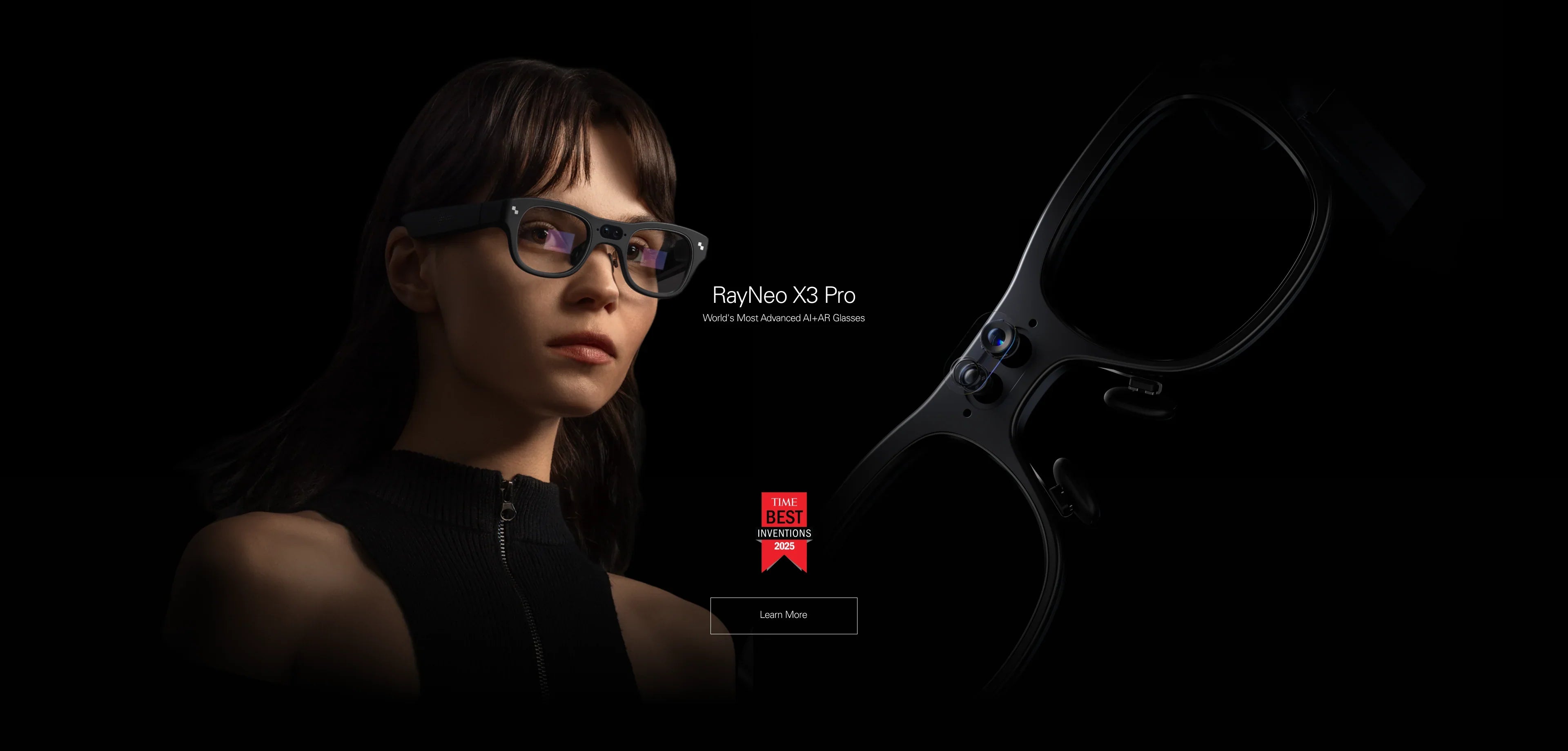
Trust Signal: RayNeo is an Official Worldwide Olympic Partner for AR Glasses. This technology has been vetted on the global stage, earning a special mention in TIME's 2025 Best Inventions list.
The Foundation: Compatibility & Ecosystem Checklist
Before we discuss features, let's perform a "Fit Check" on your digital life. The RayNeo X3 Pro is designed to be standalone, but it relies on your existing ecosystem for connectivity and setup.
1. Smartphone Requirement (iOS vs. Android)
Unlike wired display glasses (which rely on USB-C DP Alt Mode), the X3 Pro connects wirelessly.
-
For Android Users: The experience is seamless. The RayNeo App handles Wi-Fi credential sharing, photo syncing, and notification forwarding reliably.
-
For iPhone Users: iOS is fully supported, but due to Apple's system restrictions, you may need to keep the RayNeo app running in the background to ensure stable notification mirroring. The core AI functions (translation, nav) work independently of the OS once Wi-Fi is set.
2. The Network Requirement (Crucial)
This is the most common point of confusion. The X3 Pro does not have a SIM card slot. To use the Google Gemini AI or Real-Time Translation while walking down the street, you must have:
-
A smartphone with a reliable Mobile Hotspot plan.
-
OR a portable 4G/5G Wi-Fi puck.
Without internet, the glasses revert to basic offline functions (camera, simple time/date HUD). They do not have offline Large Language Models (LLMs) for complex queries yet.
3. The Physical "Eye Box"
Optical Waveguide technology acts like a projector shooting light into a specific zone in front of your eye. If your Interpupillary Distance (IPD) is extremely wide (>72mm) or extremely narrow (<56mm), you might struggle to see the edges of the display. The X3 Pro has a generous sweet spot, but it is physics-limited.

Fit Check: Who is the RayNeo X3 Pro Actually For?
We classify users into "Green Light" (Buy) and "Red Light" (Wait/Alternative) categories based on utility, not budget.
Green Light: The Information-Hungry Professional
You should consider this device if your workflow requires hands-free data access.
-
The International Operator: You are in Tokyo for business. You don't speak Japanese. The X3 Pro's 14-language translation (powered by Microsoft Azure) provides live subtitles. You look at the client, not your phone translation app. This eye contact is invaluable.
-
The Technical Specialist: You are fixing a server rack or assembling a complex mechanism. You need the manual or a schematic overlay in your vision while your hands are using tools.
-
The AI Power User: You want to leverage multimodal AI. You see a component, a flower, or a landmark, and you ask "Hey RayNeo, what is this and how much does it cost?" The camera sees it; Gemini answers it.
Red Light: The Media Consumer
If your search history includes "best glasses for Steam Deck" or "watching movies on plane," stop.
The X3 Pro is optimized for transparency—so you can see the world. It is not optimized for immersion (blocking the world). For gaming and movies, the RayNeo Air 3s series offers a Micro-OLED screen that simulates a dark, private theater. The X3 Pro is for reality; the Air series is for escaping reality.
Step-by-Step Setup: The First 30 Minutes
Many returns happen because of poor initial setup. The X3 Pro is not "plug and play" like a monitor; it is "configure and wear" like a smartwatch. Here is the path to a headache-free experience.
Phase 1: The Hardware Calibration
Do not skip this. If the glasses sit wrong on your nose, the text will look blurry or cut off.
-
Nose Pad Selection: Your box comes with different nose pad heights.
-
Put the glasses on. Look straight ahead.
-
Is the time/weather widget cut off at the top? You need taller pads to lower the glasses relative to your eyes.
-
Is the bottom cut off? You need shorter pads.
-
-
Temple Molding: The rear tips of the X3 Pro temples are adjustable. Bend them gently inward to hug the curve of your skull. This distributes the 76g weight to your ears, relieving pressure from your nose bridge—essential for 4+ hour sessions.
Phase 2: The Digital Handshake
-
App Permissions: When you install the RayNeo App, it will ask for many permissions (Bluetooth, Location, Camera, Microphone). Grant them all.
-
"Location" is required for Bluetooth Low Energy (BLE) pairing on Android.
-
"Microphone" is needed for voice command setup.
-
-
Wi-Fi Credential Injection: During setup, the app will "push" your home Wi-Fi password to the glasses via Bluetooth. This saves you from typing a password on a virtual keyboard with your head.
-
Firmware Update: Out of the box, there will likely be a Day-1 patch to optimize the AI response time. Keep the glasses in the case during this 10-minute process.
Phase 3: The "Etiquette" Configuration
Before heading out, configure the Privacy & Notification settings.
-
Turn off "Wake on Head Lift": This prevents the screen from lighting up every time you look up, saving battery.
-
Set "Ring" Sensitivity: If you use the RayNeo Ring, adjust the scroll speed. The Ring is the secret weapon for controlling the UI discreetly during meetings without raising your hand to your temple.
Common Issues & Troubleshooting (The "What Ifs")
Even premium technology has friction points. Here are the realistic scenarios you might face and how to solve them.
Scenario A: "I see a ghosting or halo effect around text."
The Reality: You look at white text against a black background and see a faint glow.
The Fix: This is physics. Diffractive waveguides manipulate light at a microscopic level. High contrast scenes trigger slight diffraction artifacts. To minimize this, switch the UI theme to "Light Mode" during the day, or lower the brightness manually at night. It is not a defect; it is the nature of transparent optics.
Scenario B: "The glasses are warm on the right side."
The Reality: You have been using the AI camera or navigating for 20 minutes, and the temple feels hot.
The Fix: The right temple houses the Qualcomm Snapdragon AR1 processor. It uses the frame as a heatsink to keep the chip cool. If it becomes uncomfortable, the device is working hard. Close the "Camera" or "Translation" app when not in use. The OS will also throttle performance automatically if it reaches a safety threshold.
Scenario C: "AI says 'Network Error' even though my phone has 5G."
The Reality: The glasses have lost connection to the hotspot.
The Fix: Smart glasses radios are smaller than phone radios. If your phone is in a back pocket or a thick bag, the Wi-Fi signal might degrade (body blocking). Move the phone to a front pocket or jacket pocket. Also, ensure your hotspot is set to "5GHz Preferred" for lower interference.

Comparison: The Landscape of "Smart" Eyewear
To truly understand the value of the X3 Pro, we must contextualize it against the other two categories of eyewear. Most user dissatisfaction comes from buying the wrong category.
Category 1: Audio Glasses (e.g., Meta Ray-Ban)
These are excellent for capturing quick videos and listening to music. They are stylish and light. But they are blind. They cannot show you a map. They cannot display a translation. They are audio-first.
Category 2: Display Glasses (e.g., RayNeo Air 2s / XREAL)
These are portable monitors. They use Micro-OLED + Birdbath optics. The screen is gorgeous (1080p, high contrast), but the lenses are dark/tinted. You cannot walk around safely while wearing them. They are for consumption.
Category 3: True AR Glasses (RayNeo X3 Pro)
These use MicroLED + Waveguides. The goal is augmentation. You see the real world clearly (90% transparency), and digital info floats in it. This is the hardest tech to build, which is why it costs $1,299.
Why RayNeo X3 Pro in 2025? (The Verdict)
So, is the RayNeo X3 Pro worth the investment?
If you judge it by the standards of a smartphone (all-day battery, app store with millions of apps), it is early tech. But if you judge it as a new computing platform, it is a revelation.
The "Subtle Brilliance" of the X3 Pro lies in its MicroLED display. Competitors are still struggling with OLED, which forces them to make glasses that look like sunglasses (to block light so you can see the screen). RayNeo has solved the brightness problem. By pumping out huge amounts of light through microscopic pixels, the X3 Pro allows the lenses to remain clear.
This means, for the first time, you can have a conversation with someone while seeing a notification, without them feeling like you are hiding behind dark shades. You can walk down a street and see navigation arrows without bumping into pedestrians.
The X3 Pro isn't just a gadget; it is the bridge between the "Phone Era" and the "Augmented Era." It has friction—charging, heating, setup—but it grants superpowers that no phone can match: Information without attention.
Limits & Realistic Expectations
To maintain our neutral consultant stance, we must reiterate the physical limits you will encounter:
-
Battery Life: Do not expect 8 hours of continuous screen-on time. Expect 3 hours of heavy AI use. The charging case is mandatory for a full day out.
-
Text Clarity vs. Background: If you look at a bright white cloud, the digital text might lose some contrast. This is physics. The "Auto-Brightness" helps, but it cannot outshine the sun perfectly every time.
-
Input Method: Voice and Ring control are good, but typing a Wi-Fi password or a long email on glasses is still tedious. Do not plan to write your novel on this device.
Act: Next Steps
If you have decided that the utility of hands-free AI outweighs the early-adopter friction, here is your action plan:
-
Check Availability: As MicroLED yields are limited, stock fluctuates. Check the Official Product Page.
-
Existing Users: If you own the X2, the weight reduction alone (from ~120g to 76g) is worth the upgrade. Check the Trade-In Offers.
-
Support: Bookmark the Compatibility Checklist to ensure your current phone is ready.
FAQ
Q: Can I wear the X3 Pro in the rain?
A: The X3 Pro has basic water resistance (sweat and light rain), but it is not waterproof. The open ports for microphones and speakers mean you should not submerge it or wear it in a heavy downpour.
Q: Does the AI record everything I see?
A: No. The X3 Pro is not "always recording." The camera only activates when you explicitly trigger it (via voice "Take a photo" or button press). When the camera is active, a physical LED indicator lights up to alert those around you, ensuring privacy compliance.
Q: Can I connect Bluetooth headphones?
A: Yes. While the glasses have built-in "Whisper Mode" speakers that direct sound to your ears, you can pair standard Bluetooth earbuds (like AirPods or Pixel Buds) to the glasses for better audio quality and privacy during calls.
Q: Why is the price so high compared to Air 2s?
A: You are paying for miniaturization and cutting-edge optics. The MicroLED panels in the X3 Pro are some of the most expensive display components in the world, and the Snapdragon AR1 processor is a specialized computer. The Air 2s is just a screen; the X3 Pro is a computer + screen + camera + AI engine.
Share:
What Are the Best Smart Glasses Right Now? The Ultimate 2026 Guide
Are There Smart Glasses With a Display That Support Prescription Lenses? (2026 Guide)