


Contents
- 1. The Landscape: Display Glasses vs. AI Glasses
- 2. Fit Check: The "DP Alt Mode" Gatekeeper
- 3. Step-by-Step Setup Guide
- 4. Market Comparison: RayNeo vs. Competitors
- 5. Internal Decision: RayNeo Air 4 Pro vs. X3 Pro
- 6. Realistic Limitations & Health Advice
- 7. FAQ: Extended
- 8. Next Steps: What Should You Do Now?
If you are searching for the "best AR glasses," you are likely overwhelmed by conflicting terminology. In 2026, the market has split into two distinct categories, and the right choice depends entirely on your primary use case.
Here is the bottom line:
-
For Gaming & Movies (The "Portable Monitor"): Choose the RayNeo Air 4 Pro. It connects via cable to your Steam Deck or iPhone 15 to create a massive 201-inch private OLED cinema.
-
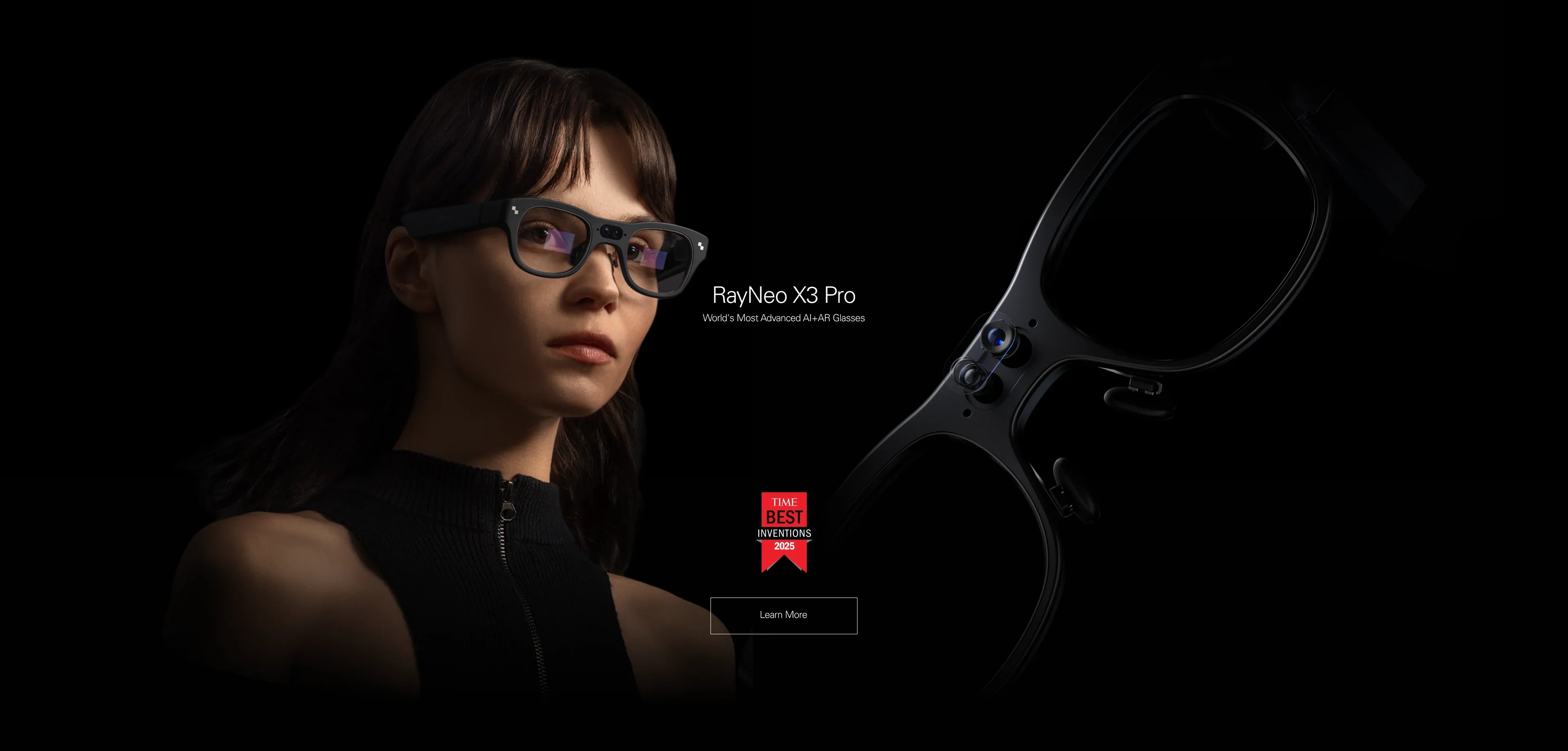
For Travel & Productivity (The "AI Computer"): Choose the RayNeo X3 Pro. It is a wireless, standalone device that uses AI to translate languages and navigate the real world.
This guide prioritizes compatibility. We start by ensuring your current devices will actually work with these glasses, then move to a neutral comparison against competitors like XREAL and Meta.
1. The Landscape: Display Glasses vs. AI Glasses
Before checking your phone, it is crucial to understand that "Smart Glasses" is no longer a single category. Buying the wrong type leads to frustration.
Type A: XR Display Glasses (e.g., RayNeo Air 4 Pro, XREAL Air 2)
These devices are essentially monitors you wear on your face. They do not have a brain (CPU) or a battery. They rely on a host device (phone/console) to send video signals.
-
Pros: Incredible image quality (OLED), infinite battery (draws from phone), zero latency for gaming.
-
Cons: You are tethered by a cable; if your phone isn't compatible, the glasses are useless.
Type B: AI Smart Glasses (e.g., RayNeo X3 Pro, Meta Ray-Ban)
These are standalone computers. They have their own processor, battery, and Wi-Fi.
-
Pros: Wireless freedom; works with any smartphone (via app); advanced AI features like translation.
-
Cons: Heavier; limited battery life; display is usually less immersive (optimized for text/info, not movies).
2. Fit Check: The "DP Alt Mode" Gatekeeper
The #1 reason for returning AR glasses is compatibility. Unlike Bluetooth headphones, wired AR glasses require a specific hardware standard to function.
The Golden Rule: Your device must support DisplayPort Alternate Mode (DP Alt Mode) over USB-C. This protocol reconfigures the USB-C pins to transmit high-bandwidth video.
Smartphone Compatibility Breakdown
-
iPhone 15 & 16 Series (and Pro models): ✔ Native Support.
Apple's switch to standard USB-C means these phones work plug-and-play. You get 1080p screen mirroring instantly. -
iPhone 14 & Older (Lightning): ✖ Incompatible.
The Lightning port is physically incapable of outputting AR-grade video. Do not buy a simple adapter. You need a powered "HDMI to Lightning" dongle chain, or better yet, a wireless casting solution like the RayNeo Pocket TV. -
Samsung (S10 through S26): ✔ Excellent.
These support Samsung DeX, which provides a desktop interface inside the glasses. This is often superior to simple screen mirroring as it lets you turn off the phone screen to save battery. -
Google Pixel (6, 7): ✖ Hardware Locked.
Google physically disabled video output on the motherboard level for these generations. -
Google Pixel (8, 9 Pro): ⚠ Check Update.
Video output was enabled via a software update. Ensure your Android OS is current.
Console Compatibility Breakdown
-
Steam Deck / ROG Ally: ✔ Native Support.
The USB-C ports on these handhelds are full-featured. The RayNeo Air 4 Pro is widely considered the "ultimate accessory" for Steam Deck, upgrading the 800p LCD screen to a 1080p OLED theater. -
Nintendo Switch: ⚠ Requires JoyDock.
Why it fails: The Switch uses a proprietary "Docked Mode" protocol. It needs to detect a power source AND a specific HDMI handshake to output video. Standard USB-C cables cannot trigger this.
The Fix: You must use the RayNeo JoyDock. This accessory clips to the Switch, provides the required power, and converts the proprietary signal to standard DP Alt Mode for the glasses. -
PlayStation 5 / Xbox Series X: ⚠ HDMI Adapter Required.
These consoles lack USB-C video output. You need a "Powered HDMI-to-USB-C Adapter" (like the RayNeo HDMI Adapter). Note that this adapter requires its own USB power source, adding to the cable clutter.
3. Step-by-Step Setup Guide

Once you've confirmed hardware compatibility, follow this sequence to ensure the best experience.
Phase 1: Physical Connection
-
Inspect the Cable: The RayNeo cable is directional. Locate the Angled (L-shaped) end.
-
Connect Glasses: Plug the Angled end into the Right Temple of the glasses. The angle is designed to route the cable behind your ear, reducing drag and keeping it invisible.
-
Connect Source: Plug the Straight end into your phone or console. Ensure a firm "click." (Tip: Remove thick phone cases if the connection feels loose).
Phase 2: Audio Routing
By default, some devices may prioritize their internal speakers over the USB connection.
-
iOS: Open Control Center -> Tap the AirPlay icon (top right of music controls) -> Select "RayNeo Air" (or "USB Audio Device").
-
Steam Deck: Press STEAM button -> Settings -> Audio -> Output Device -> Select "External Device". (Note: Set volume to 100% on the Deck, then adjust using the rocker switch on the glasses temple).
-
Android: Most switch automatically. If not, go to Settings -> Sound -> Media Output.
Phase 3: Fitment & "Sweet Spot" Calibration
The #1 complaint with AR glasses is "blurry edges." This is usually a fitment issue, not a defect.
The Physics: To project a 201-inch screen from tiny displays, the optics (Birdbath) have a specific "Eye Box." Your pupil must be aligned with the center of the lens.
-
Vertical Adjustment (Nose Pads): If the top of the screen is cut off, the glasses are too high (switch to S nose pad). If the bottom is blurry, they are too low (switch to L nose pad).
-
Tilt Adjustment: The temples of the Air 4 Pro have a 3-level rake adjustment. Tilt the arms up or down to align the lenses perpendicular to your face.
-
Prescription Lenses: Do not wear these over daily glasses. The distance creates distortion and risks scratching. Use the included magnetic template to order prescription inserts.
4. Market Comparison: RayNeo vs. Competitors
We believe in helping you find the right tool. Here is how RayNeo stacks up against major competitors in specific scenarios. We focus on trade-offs, not marketing hype.
Scenario A: The "Commuter" (Gaming & Movies)
Contenders: RayNeo Air 4 Pro vs. XREAL Air 2 Pro vs. Rokid Max
Scenario B: The "Digital Nomad" (Productivity)
Contenders: RayNeo Air 4 Pro vs. VITURE Pro
-
VITURE Pro: Focuses heavily on their "Neckband" ecosystem for running Android apps independently of a phone.
-
RayNeo Air 4 Pro: Focuses on being a pure, high-fidelity monitor. When paired with the Pocket TV (a Google TV certified device), it offers a more standardized streaming experience.
-
Verdict: If you want a Google TV experience (Netflix, YouTube) with a dedicated remote, the RayNeo ecosystem is often more familiar and user-friendly than proprietary Android forks.
Scenario C: The "AI Explorer" (Assistance)
Contenders: RayNeo X3 Pro vs. Meta Ray-Ban vs. XREAL Beam Pro
5. Internal Decision: RayNeo Air 4 Pro vs. X3 Pro
If you've decided on the brand, which model fits your life?

Option 1: RayNeo Air 4 Pro (The Cinema)
Best For: Pure immersion. Steam Deck gaming, In-flight movies.
-
Visuals: Micro-OLED. Creates a dark, private theater. Best contrast.
-
Weight: ~76g. Extremely light for long sessions.
-
Battery: None. Uses phone power (drains phone ~15%/hour).
Option 2: RayNeo X3 Pro (The Assistant)
Best For: Pure interaction. Travel translation, Navigation, Notification triage.
-
Visuals: Waveguide MicroLED. Transparent and bright. Optimized for info overlay, not movies.
-
Weight: ~80g+. Slightly heavier due to internal battery/CPU.
-
Battery: Internal. Lasts ~3-5 hours of active use, or all day standby.
6. Realistic Limitations & Health Advice
We want you to be a long-term user, not a one-time buyer. Here is the honest truth about living with AR glasses.
1. The "Heat" Factor
The Reality: AR glasses generate heat. On the Air 4 Pro, the heat is mostly in the temple tips (where the electronics are). On the X3 Pro, the bridge may get warm.
The Fix: This is normal. The frames act as heatsinks. However, if gaming for 3+ hours, you might feel warmth on your ears. We recommend a 5-minute break every hour to let both the device and your skin cool down.
2. Motion Sickness (Vergence-Accommodation Conflict)
The Reality: Some users experience mild nausea when using AR glasses, especially if the virtual screen is fixed in space (3DoF) while your body is moving (e.g., in a car).
The Fix: Start with "Head-Follow Mode" (0DoF), where the screen moves with your head. This reduces the sensory conflict. Gradually introduce 3DoF usage in short bursts.
3. Battery Anxiety
The Reality: Wired glasses (Air 4 Pro) are vampires. They will drain a standard iPhone 15 battery in about 4-5 hours of movie watching.
The Fix: For long-haul flights or gaming marathons, use a "Splitter Adapter" (like the JoyDock or third-party Charge & Play adapters) that allows you to plug in a charger and the glasses simultaneously.
7. FAQ: Extended
Q: Can I really replace my monitors with this?
A: For specific tasks, yes. The resolution is 1080p per eye. This is excellent for watching videos, light coding, or writing emails. However, for pixel-perfect graphic design or editing 4K video where color grading is critical, a calibrated 4K desktop monitor is still superior. Think of this as the ultimate portable monitor, not a studio replacement.
Q: How does the prescription lens process work?
A: The glasses come with a "Lens Template" (a plastic frame). You have two options:
1. Take this template to your local optician. They can cut standard lenses to fit the shape.
2. Use our official partner service online. Upload your prescription, and we ship magnetic lenses that snap directly onto the glasses. This is usually cheaper and faster ($30-$50 range).
Q: What if I lose the USB-C cable? Can I use any cable?
A: No. Most random USB-C cables found in drawers are USB 2.0 cables (charging only). They cannot carry video. You must use a cable rated for USB 3.1 Gen 2 (10Gbps) or higher, which supports 4K video output. We recommend buying an official replacement to ensure the "L-shape" ergonomics fit the glasses correctly.
Q: Is the X3 Pro camera always recording?
A: No. The camera is only active when you explicitly trigger a feature (like "Take a photo" or "Translate this menu"). When active, a hard-wired LED light on the frame turns on to alert people around you. This is a privacy feature that cannot be disabled via software.
8. Next Steps: What Should You Do Now?
We believe in "Safe Buying." Instead of rushing a purchase, follow this logical path:
Action 1: Check Your Compatibility First
Don't guess. Use your current phone model to confirm if it supports DP Alt Mode.
→ Check My Device Compatibility
Action 2: Start with Small Scenarios
You don't need to master everything on day one. Start by connecting to your Smartphone first to get comfortable with the display. Once you are used to it, expand to connecting your Handheld Console (Steam Deck/Switch) for the full immersive experience.
Action 3: Complete Your Kit
If your "Fit Check" showed you need an adapter (like for iPhone 14 or Switch), or if you run into issues:
Share:
What Are the Best Smart Glasses Right Now? The Ultimate 2026 Guide
Are There Smart Glasses With a Display That Support Prescription Lenses? (2026 Guide)